Skip to content

To pair your AirPods with your phone or computer, you need to put them in pairing mode.
To pair your AirPods with another device, such as your laptop or mobile phone, you will need to put your AirPods Pro in pairing mode. In this guide, I will show you how to put your AirPods in pairing mode and provide troubleshooting tips for common pairing problems.
Before You Start: What You Need
To start, you will need your AirPods Pro as well as the case. They AirPods should have some charge (not be dead). Furthermore, turn on Bluetooth on the device you are connecting them to.
If you are connecting them to an Apple device, make sure you are signed in with your Apple account and that it has the latest operating system version installed. Also, make sure it has mobile data or Wi-Fi enabled.
Fast Pair With an iPhone or iPad (No Buttons)
The good part about connecting AirPods to your iPhone is that once you connect it to your iPhone, you can then connect it automatically to any other Apple device on which you are signed in using the same Apple account. In other words, Apple devices support automatic device switching with iCloud pairing. After connecting it to your phone, it will be detected automatically by your Apple Watch, Mac, or Apple TV.
To connect your AirPods to your iPhone or iPad, follow these steps:
- Open the case but keep the AirPods inside.
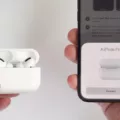
- Hold the AirPods next to the iPhone until the setup animation appears on the screen.
- Follow the on-screen instructions to complete pairing.
To pair the AirPods with an Apple Watch, go to Settings > Bluetooth on your Apple Watch and tap on your AirPods in the Bluetooth settings screen.
Pair to Android, Windows, or Mac

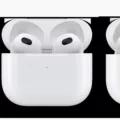
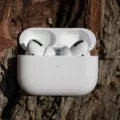
The AirPods should be in their case, with the lid open, when putting them into pairing mode.
If you are using any other device, such as an Android phone, the process depends on which AirPods Pro model you have.
First thing first, open the Bluetooth settings on your device:
- On your Android, go to Settings > Bluetooth and look for the Available Devices list.
- On Windows, go to Settings > Bluetooth & Devices > Add Device.
- On a Mac, go to the System Settings app and select Bluetooth in the sidebar.
- On an Apple TV, go to Settings > Remotes and Devices > Bluetooth and look for the Other Devices list.
- On an iPhone (if pairing manually or to a different Apple ID), go to Settings > Bluetooth.
Then, put the AirPods Pro in pairing mode and pair the devices by following the steps below.
If you have the AirPods Pro 1 or 2, follow these steps:
- Open the case but keep the AirPods inside.
- Press and hold the setup button on the back of the case.
- Wait 5 seconds or until the status light flashes white.
- On your phone, tablet, TV, or computer, select the AirPods from the Bluetooth settings.
If you have the AirPods Pro 3, follow these steps:
- Open the case but keep the AirPods inside.
- Hold the AirPods next to the device.
- Double-tap the front of the case until the status light flashes white.
- On your phone, tablet, TV, or computer, select the AirPods from the Bluetooth settings.
Pair to a Different Apple ID
One of the benefits of pairing AirPods to a device with an Apple ID is that any device signed in to with that Apple ID will detect the AirPods automatically.
If you have two Apple IDs, you can still connect the AirPods to other devices manually by following the steps in the previous section.
However, if you want to pair it to a new Apple ID, you should first remove them from the list of connected devices in your iCloud account. Go to the Find My app on your phone or to icloud.com/find and remove the AirPods from the list. You can then pair them to an iPhone that has a different Apple ID.
Alternatively, to remove the AirPods from your Apple ID, just go to your Settings app on your iPhone or Mac. Find your AirPods (near the top on your iPhone and in the sidebar on your Mac), click on them, and then click on Forget This Device. On an Apple Watch, go to Settings > Bluetooth and click the information icon next to the AirPods, and then click on Forget Device.
Re-Pair When AirPods Won’t Connect
If AirPods won’t connect, you can unpair them and re-pair them. This sometimes fixes pairing and connectivity issues.
One way to do this is by removing them from your Apple ID. The easiest way to do that is to go to the Settings app on your iPhone or Mac, tap the AirPods, and then click on Forget This Device, as explained in the previous paragraph. You can then pair the AirPods again with your Apple device.
If the AirPods are paired with a non-Apple device or with an Apple device manually (over Bluetooth), go to the Bluetooth settings, tap on the AirPods in the list of paired devices, and then click on Forget This Device.
You can also try resetting your AirPods.
To reset your AirPods Pro 1 or 2, follow these steps:
- Put the AirPods in their case and close the lid.
- Wait 30 seconds and open the lid.
- Press and hold the setup button on the back of the case for around 15 seconds.
- Wait until the status light status light flashes amber and then white.
If you have AirPods Pro 3, follow these steps to reset them:
- Put the AirPods in their case and close the lid.
- Wait 30 seconds and open the lid.
- Double-tap the front of the case three times.
- Wait until the status light status light flashes amber and then white.
LED Cues You Should Recognize
It’s important to know the different status light indicators on your AirPods Pro case.
The status light can be green, amber, or white. Here’s what the different status lights mean:
- Flashing white: The AirPods are in pairing mode.
- Flashing amber and then white: The AirPods were reset successfully.
- Amber while charging: This means they are not fully charged but are charging successfully.
- Green while charging: The AirPods are fully charged.
- Flashing amber: This typically indicates an error, such as a pairing error or another issue. Consider resetting your Airpods.
Can You Pair Without the Case?

If the AirPods are not in their case, you can’t put them in pairing mode.
While you can connect AirPods to a device they were previously connected to without the case, you cannot pair them with a new device without the case. You need the AirPods to be in their case, with the lid open, to enter pairing mode.
However, you can use a replacement AirPods case. As long as the case is for AirPods of the same model (such as AirPods Pro 3), you can buy a new case and use it instead.
Quick Troubleshooting Checklist
If your AirPods won’t pair, or if AirPods pairing failed, here are some quick fixes to help:
- Make sure the AirPods and case are charged.
- Reset your AirPods.
- Reboot the phone or computer.
- Update the operating system on your device.
- Update the firmware on your AirPods by keeping them plugged in and charging, inside the case, for 30 minutes while in proximity to your iPhone that is connected to Wi-Fi.
- Clean the case and remove debris that may be blocking the AirPods from the connectors.
- Move away from interference, such as other Bluetooth devices or microwaves.
- If connecting the AirPods to a new Apple ID, make sure they are removed from your previous Apple ID.
Conclusion
To put your AirPods in pairing mode, you need to put them inside the case and open the lid. Depending on the model of your AirPods Pro, you will need to either press and hold the setup button or double-tap the front of the case. If you can’t pair them, try resetting and re-pairing them or following the AirPods Pro troubleshooting steps above.