

Are your iPhone apps closing by themselves? If your apps keep closing, it can be quite frustrating when you are multitasking and need to go back and forth between different apps. In this guide, I will show you how to keep apps running in the background on your iPhone and explain how the iOS background refresh feature works.
How iOS Handles Apps in the Background
First, it’s important to understand how iOS handles background app management.
Here’s how iPhones generally manage apps. If an app is actively in use, it consumes resources. When you switch to another app, the other app may still be active in the background, but only for a short while.
If you continue using it in the background (by playing music on Spotify, for example), it will continue being used in the background. If you don’t use it in the background, the app will eventually switch to a suspended state.
Generally, an app that is suspended does not consume much resources. If you open the app again, there is a chance that it may refresh and load again before new updates are displayed, which can be annoying.
What Is Background App Refresh and Why It Matters
Background App Refresh is an iPhone feature that allows apps to refresh in the background and check for updates instead of being completely suspended. This allows them to get updates, such as new messages, even when they are not actively in use. When you open them again, they will typically show new updates immediately, without needing to refresh.
Why does it matter? If you enable Background App Refresh, you will get updates easier, and apps will typically work in the background, allowing for faster updates and a smoother multitasking experience. On the other hand, all this background activity can also use up iOS resources, leading to more battery drain and cellular data usage.
The good news is that you can enable Background App Refresh only for specific apps while disabling it for other apps, allowing you to minimize resource consumption.
How to Enable or Disable Background App Refresh
To turn on Background App Refresh, go to Settings > General > Background App Refresh on your iPhone.
There, you can enable or disable Background App Refresh. You can also enable it only when your phone is connected to Wi-Fi but not when using mobile data. Alternatively, even if you enable it, you can toggle it on and off for specific apps, allowing for granular control over background app activity.
How to Stop iPhone Apps from Closing in the Background
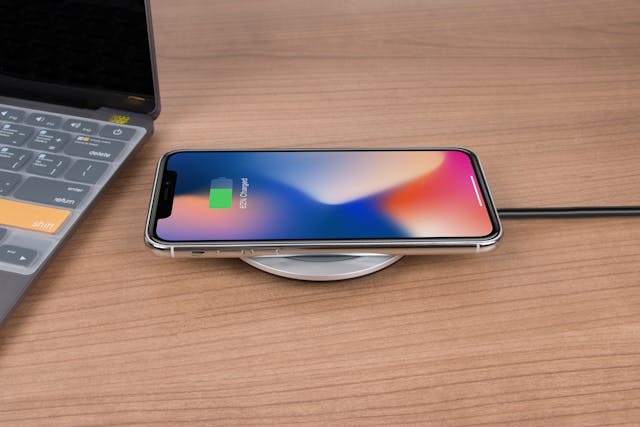
There is no surefire way to completely stop your iPhone from closing apps in the background. With Background App Refresh enabled, you can often stop it from happening, but your iPhone may still force close apps if too many resources are being used at once and it does not have the RAM required.
Another factor worth mentioning is Low Power Mode. If Low Power Mode is active, your iPhone may close apps automatically to help conserve energy. Disabling Low Power Mode can use up more battery but prevent apps from being closed automatically.
Should You Keep Apps Running in the Background?
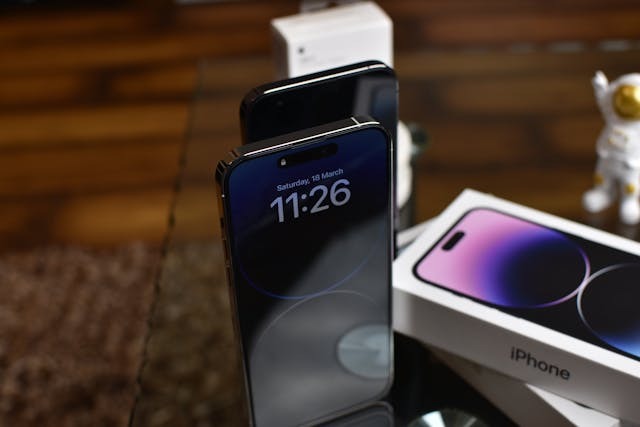
Whether you enable or disable Background App Refresh and for which apps is up to you and depends on your mobile data plan and how good your battery is.
However, there’s no need to manually force close apps to free up RAM for other apps unless the app is actively in use in the background (such as Spotify when playing music and Waze when being used for navigational directions). iOS is good at managing apps by itself, and force closing apps doesn’t usually do much.
Unfortunately, iPhone RAM cannot be increased. However, you can upgrade to an iPhone model that has more RAM.
Conclusion
iOS manages RAM effectively automatically. Force closing apps won’t usually help other apps remain in the background. However, you can enable Background App Refresh and disable Low Power Mode to increase the chances of an app being kept in the background without being closed by iOS automatically.
Related posts:
 How To Check Your Mac’s RAM
 Exploring the Sweet Spot: Is 3GB RAM Enough for Your Android Phone in 2021?
 A Comprehensive Guide to RAM Speed Testing
 How to Upgrade Your Macbook Pro RAM to 16GB
 An Overview of RAM Sticks for PC Performance
 An Overview of iPhones with the Most RAM
 How to Check Your Macbook RAM Usage
 33 Facts About Apple Watch Low Power Mode
