 Skip to content

Developer Tools are an important component of any web browser. They allow you to view the internal code of a website and are critical for debugging websites or web apps when building them, testing responsive layouts, inspecting elements, and checking console errors. They even allow you to change the code in your browser for any website and see live changes without actually changing the internal code in the backend.
In this guide, I will show you how to open Developer Tools on your Mac.
What Are Developer Tools on Mac?
Developer Tools are built into all modern web browsers. They allow you to inspect the HTML and CSS of a website, check JavaScript and network errors, monitor page performance, and more. They are crucial for inspecting websites you are working on in real time without changing any code in the backend.
You can even use it to inspect other people’s websites and play around with the code in your own browser. It won’t affect the code on the website’s server and only in your browser, but it can help you get an idea of what tools a website is being built with and get inspiration for your own websites.
How to Open Developer Tools on Safari on Mac
Opening Developer Tools on Safari is not as straightforward as it is on Chrome.
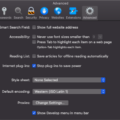
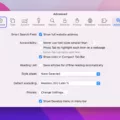
First, you need to enable the Develop option in the Safari menu. Go to Safari > Settings, click Advanced, and turn on Show Features for Web Developers.
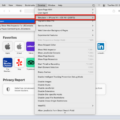
Once you do that, you will see a Develop option in the menu bar. From there, you can open various developer tools, including the Console to debug errors, the Web Inspector to view DOM elements, the Storage Tab to view cookies and session storage details, and Responsive Design Mode to see how your website will look on different devices.
Alternatively, you can use the shortcut Command + Option + I to open the Web Developer Tools.
How to Open Developer Tools on Chrome on Mac
To open the Developer Tools on Chrome, use the shortcut Command + Option + I.
It’s as easy as that!
Alternatively, right-click on a webpage and click on Inspect to open the Developer Tools.
How to Open Developer Tools on Firefox on Mac

To open the Developer Tools on Firefox, use the shortcut Command + Option + I.
Alternatively, right-click on a webpage and click on Inspect to open the Developer Tools. Another option is going to the menu and navigating to Tools > Web Developer > Web Developer Tools.
Keyboard Shortcuts to Open Developer Tools on Mac
The primary shortcut to open the Developer Tools on a Mac, including Safari, Chrome, and Firefox, is Command + Option + I.
On Safari, there are additional shortcuts you can use:
- Command + Option + C opens the Error Console.
- Shift + Command + C opens the element inspector mode.
- Shift + Command + Option + P starts profiling JavaScript.
- Tab goes to the next Console suggestion.
- Shift + Command + ] goes to the next tab in Web Inspector, and Shift + Command + [ goes to the previous tab.
See here for a full list of shortcuts in Safari Developer Tools.
How to Use Inspect Element on Mac

The Inspect Element tool is an important tool in the Developer Tools on any browser. You can access it by using the Shift + Command + C shortcut (or clicking the arrow icon in the top-left corner of the Developer Tools) and then hovering your mouse over any element.
This allows you to see important details about the element, such as the font, color, margin, and more. It’s great for getting inspiration about stylistic elements to use.
Most Useful Features Inside Developer Tools
The Developer Tools contain a huge array of important tools for any web developer. Here are the most important ones you should know about:
- The Console tab lets you see errors, JavaScript warnings, and even type JavaScript code to run it live.
- The Elements tab lets you view style elements, view DOM breakpoints, see event listeners active on the page, and more.
- The Network tab helps you view network performance issues, such as files failing to load.
- The Responsive Design Mode tool lets you see how the website looks on different devices.
What to Do if Developer Tools Won’t Open on Mac
Developer Tools should open on any modern Mac browser. If it’s not opening, restart the browser and try again. Make sure the shortcut keys are working. If you are using Safari, make sure the Developer Tools are enabled in the menu. Update your browser and OS and restart your computer. If all else fails, try a different browser.
Conclusion
I hope this guide was useful! Knowing how to open the Developer Tools on a Mac is important for browser debugging. If you are just getting started in web development, it’s a critical tool for inspecting pages, debugging errors, and getting design inspiration.
Related posts:
 How to Safari Inspect Element on Mac
  How tp Open Inspect Element in Browser
  How To Open Console In Chrome
  Unlock the Power of Safari Developer Tools Mastering Mobile Debugging with Chrome’s Inspect Element Feature
  How To Inspect Elements On Mac
  Samsung Galaxy S21 Ultra Tips – App Developer Options
  How to Inspect Elements on Your iPad