

If you notice that a particular website is blocked in Safari on your Mac, the first place you should go to is your Safari settings. There might be some Content Blockers or site permissions that are blocking the page.
Try to disable any blockers that might be working against that site. If the page is still blocked, then it’s possible that Screen Time is responsible for that.
You can check this out by going to your System Settings, opening Screen Time and then checking Content and Privacy restrictions and the Web Content option. If “Allowed Websites Only” is enabled, then you should add the site to the approved list.
Check If Safari Is Blocking Pop-Ups or Content
Sometimes a website may look like it’s broken because Safari is blocking something that the website really needs to use to work properly. You should check the permissions for that particular site. This will help you make sure that nothing that is important is being limited.
If the page should normally bring up a login or checkout window, there’s a good chance that there is a pop-up blocker enabled which is not allowing those windows to appear. You should try adjusting your Safari pop-up blocker settings for that address and reload.
Next, take a quick look at your Safari privacy and security options to confirm they are not being overly strict for this site. If there are parts of the page that are still missing, then try toggling the content blocking setting for that website and refresh the page to see if everything returns.
Review Screen Time and Content Restrictions on Mac
One major reason why you may be getting blocked from your favorite blog or news site on your Mac is the Screen Time settings. On Mac, there are usually restrictions when Screen Time is turned on for that account and Web Content limits are enabled under Content and Privacy.
You can fix the issue by opening System Settings, going to Screen Time, then Content and Privacy, and then checking the Web Content option.
If your Mac is set to “Allowed Websites Only,” you can go ahead to add the site’s link to the allowed list.
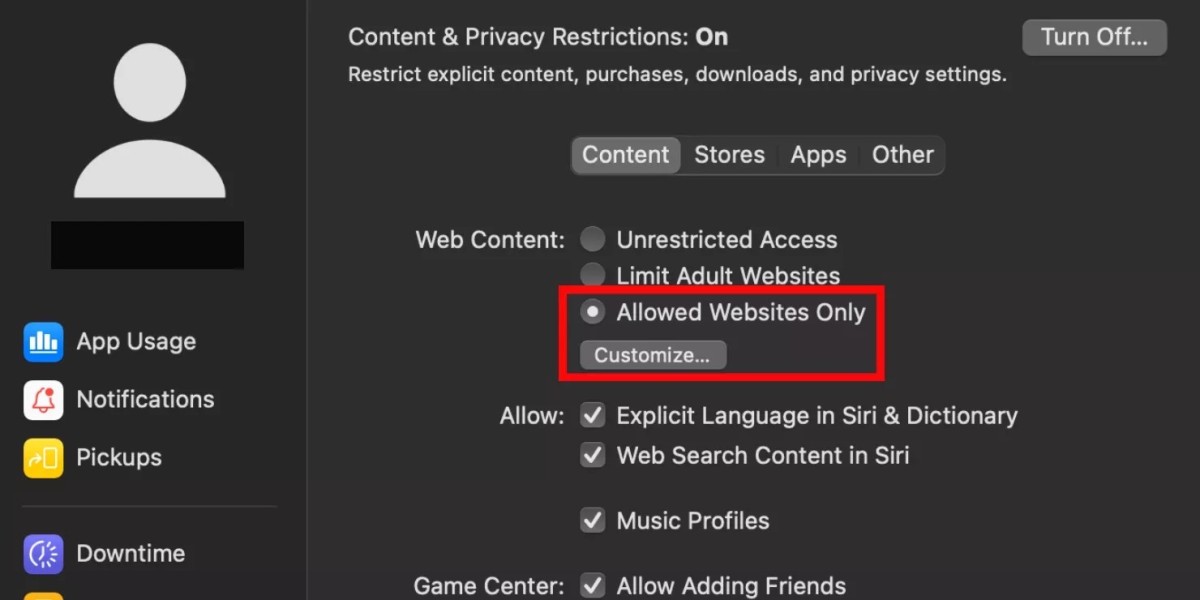
This will allow it to load normally. If it is set to limit adult websites, you can also allow specific pages that are being blocked by mistake.
Allow or Customize Settings for Specific Websites in Safari
Your Mac browser has built-in tools that may stop specific pages from acting up or showing too many ads. You should go to the Settings option in the top menu and then switch to the Websites panel. There, you will see a list of active pages where you can change your Safari website settings to block pop-ups or mute audio automatically.
It is important that you manage your website permissions in Safari. This ensures that your most-used sites have all the access they need. When these Safari site-specific settings are customized, you ensure that only the right pages can send you alerts or start a download.
Check Network, Firewall, or Security Software Blocks
Sometimes everything else may be working but one page may still refuse to open. Most times, it is not usually caused by a weak connection. Always check your System Settings for VPN or proxy settings.
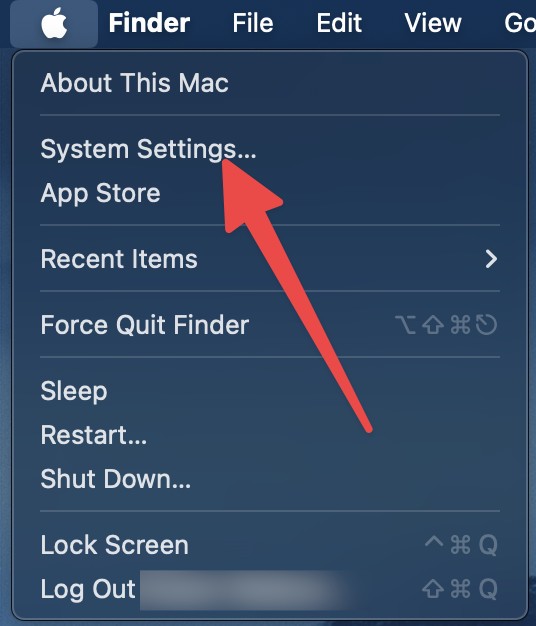
This can help you know if there’s anything rerouting your network. After that, review the DNS for anything that may not be correct.
If you happen to notice that the problem only shows up in Safari, then you should switch off any extensions and clear the site’s stored data, and then try again. On school or work machines, there is a high chance that Screen Time or management profiles are restricting certain sites.
Troubleshoot When a Website Still Will Not Open
You can start the process of troubleshooting by confirming that your Wi Fi is strong enough to pull in images and video. Then click Reload so that Safari can try the request again. If the page still looks blank, then you can try opening the same link in another browser. This will help you know if the issue is site related or just specific to Safari.
A lot of times, Safari may block parts of a page if the content blockers or privacy settings are strict. All you have to do is go to Safari Settings and review Websites, Privacy, and Extensions.
Conclusion
There are many browsing issues that can simply be fixed by adjusting a few toggles hidden in the menu. A lot of times, all you have to do is check the pop-up blocker or specific site permissions to unblock Safari websites that have been restricted on your Mac.
If the page still remains restricted, then Screen Time settings might have some content filters that you may need to change. Also, network firewalls and local security limits also play a part in stopping certain pages from loading. Simply tweaking the Safari access settings makes sure that your browser knows exactly which pages are safe to display.
Related posts:
 File Permission Denied in Linux: Understanding the Issue and How to Solve It?
 How To Enable Cross Site Tracking In Safari
 How to Insert Pages into PDFs on Mac?
 How To Get Pages On A Mac
 How to Protect Your Privacy Online With Privacy Report Safari
 Comparing Apple Pages and Google Docs For Mac
 How to Turn Off Restrictions
 A Step-by-Step Guide to Printing Booklets in Microsoft Word
