

Do you want to change your search engine from Yahoo to Google? In this guide, I will show you how to remove Yahoo Search from your browser and make Google the default search engine instead. If Yahoo is annoying you, read on.
Why Yahoo Keeps Appearing Instead of Google
The most common reason Yahoo keeps appearing instead of Google is that you have set Yahoo to be your default search engine in your browser. Another common reason is that you downloaded an application or extension that hijacks your browser and causes Yahoo to replace Google.
How to Make Google Your Default Search Engine on Your Browser
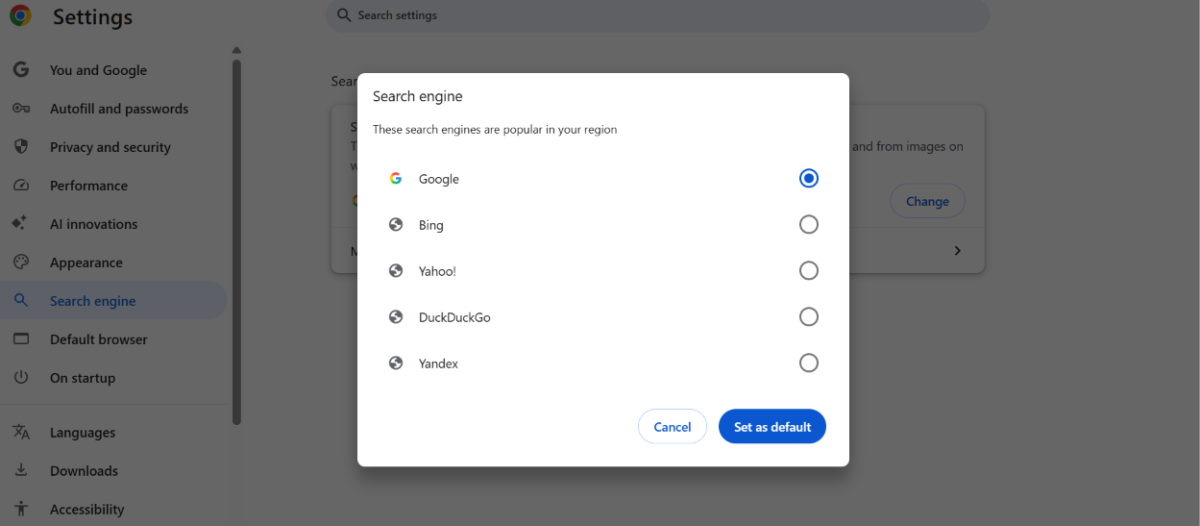
The first step is to check your default search engine settings in your browser. On Chrome, for example, open the settings and click on the Search Engine tab, where you can change the default search engine.
Similarly, in Microsoft Edge, go to the settings and navigate to the Privacy, Search, and Services tab, where you can select your default search engine under
“Search engine used in the address bar.”
How to Remove Yahoo Search from Chrome
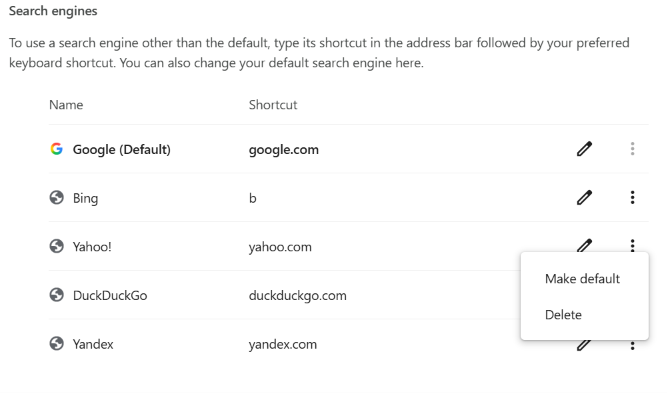
You may also want to remove the Yahoo search engine shortcut from Chrome. This shortcut allows you to search using Yahoo by simply typing Yahoo.com in the browser bar and then typing in your search term, without visiting the Yahoo website directly.
To remove the shortcut, go to the Search Engine tab in your Chrome settings, click on “Manage search engines and site search,” click the three dots next to Yahoo, and delete it from the list.
How to Change Yahoo to Google on Android
On Android, the default search bar widget on your home screen is Google. However, you may have accidentally installed Yahoo Search and added its search widget to your screen. To remove it, uninstall the Yahoo Search app.
Then, you can re-add the Google search widget by long-pressing on your home screen, clicking on Widgets, and then finding the Google search widget and dragging it back to your screen.
If Yahoo is the search engine being used in a browser like Chrome, you would need to go to the browser’s settings and select Google as the default search engine, just like you would on a desktop.
How to Change Yahoo to Google on iPhone
On your iPhone, you can select the default search engine in your settings. Open the Settings app and navigate to Search > Search Engine and select the default search engine you want to use, in this case Google. Then, click on the back arrow icon to confirm and save your new settings.
How to Stop Yahoo from Hijacking Your Browser
While Yahoo itself won’t hijack your browser, there are many third-party extensions and apps that force Yahoo as the default search engine. A good example of this is the McAfee WebAdvisor extension, which aims to keep you safe by blocking malicious sites and phishing attempts. However, a side effect is that it forces Yahoo to be your default search engine.
There are other extensions and apps that may have a similar effect. If you tried to set Google as your default search engine but Yahoo keeps coming back, take a look at the list of programs or apps and browser extensions that you installed. Disable or delete them one by one until the problem goes away, at which point you will have pinpointed which app or extension is causing the issue.
Common culprits, other than McAfee Web Advisor, are extensions from suspicious sources that try to force Yahoo on you so that they can earn revenue through ads.
How to Reset Chrome Browser Settings
Another option, other than disabling all extensions, is to reset your browser settings. For example, on Chrome, go to Settings > Reset settings > Restore settings to their original defaults > Reset settings.
This disables all extensions and resets Chrome to its original settings, with Google as the default search engine. You can now start enabling the extensions one by one to see which one was the culprit.
Run a Malware Scan to Remove Redirect Viruses
If nothing else works, consider using an antivirus solution like Malwarebytes or Avast to run a scan on your computer. There may be a hidden virus or adware that is forcing Yahoo to be the default search engine. A good antivirus will be able to detect and delete it from your device.
Conclusion
I hope this guide was useful! It can be annoying when Yahoo keeps popping up as the default search engine. Whether you set it as the default search engine yourself or a malicious extension did it for you, you can change the default search engine back to Google and delete the extension to enjoy a better browsing experience.
Related posts:
 How To Block Yahoo Search
 How To Change From Yahoo To Google On Mac ?
 How To Get Rid Of Yahoo Search On Mac ?
 Yahoo Redirect Virus Mac – All You Need To Know
 Is Safari A Search Engine Or A Browser?
 How To Remove Yahoo Redirect Virus From Safari ?
 How to Setup Yahoo Email on iPhone?
 How to Add Yahoo Mail to iPhone?
